Tabs & Editor Groups
You can keep several MIDI files open at once as tabs and view two of them side by side in independent editor groups. Each group has its own tab bar, its own set of open documents and its own fully-editable note view.
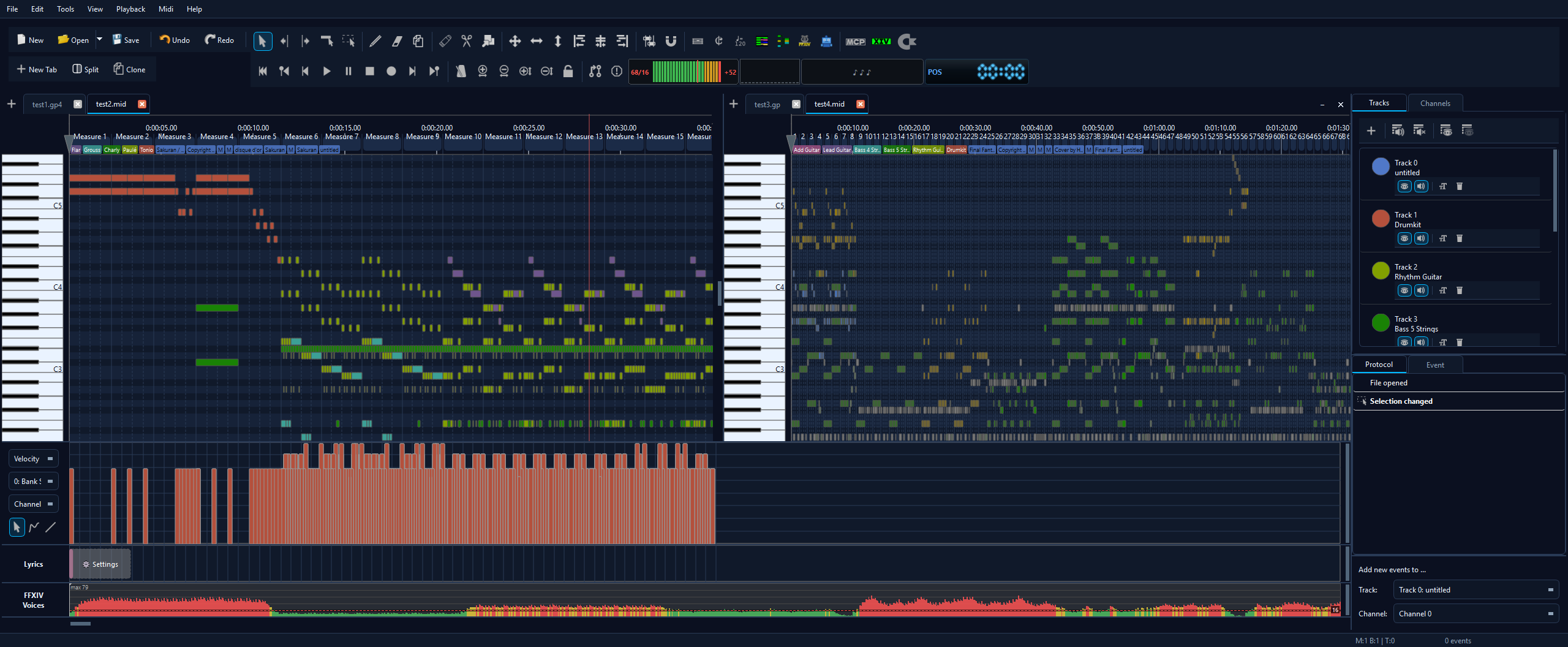
Working with tabs
File → New and File → Open now open each document in its own tab instead of replacing the current one. The tab bar sits directly above the timeline.
- Switch documents by clicking a tab.
- Close a tab with its ✕ button. If the document has unsaved changes you are asked to save first.
- Reorder tabs by dragging them along the bar.
- New tab with the + button at the left of the bar.
- Each document keeps its own selection, track/channel visibility, zoom and scroll position, so switching tabs never disturbs another document's view - a tab comes back exactly where you left it.
When you quit, all unsaved tabs (in both groups) are listed for saving - nothing is discarded silently.
MidiPilot and tabs
When MidiPilot edits a file, the result is applied to the document you started it on. You can switch to another tab while it works - the edit still lands on the original document, on the tracks and selection it was reasoning about. Only when you explicitly ask the agent to work on another open tab does it switch documents: the chat announces the switch, the visible tab stays put, and from then on its edits (and their undo steps) land in that document.
The tab tools
In the default two-row toolbar a small tab-tools row appears under the standard New / Open / Save / Undo / Redo buttons:

| New Tab | Opens a new, empty document in a tab in the focused group. |
| Split | Creates the second editor group (and toggles it - see below). |
| Clone | Duplicates the current document into a new, unsaved “<name> (copy)” tab so you can experiment without touching the original. |
| Close All Tabs | Closes every tab in both groups - with a save prompt for each unsaved document - and starts fresh with a single empty document. |
Clone in action:
Splitting into two editor groups
Press Split (or View → Compare View (side by side)) to open a second group beside the first. The selected tab moves over into the new group, and both groups become independent, fully editable panes. The focused pane is the one you last clicked: the side panels, tools, selection, zoom, scrolling and the playback cursor all follow it, so the shared scrollbars move whichever side you are working in. The focused group's tabs stay fully lit while the other group's tabs dim, so you can always tell which side is active.
Moving tabs between groups
Drag a tab from one group's bar onto the other group to move the document across. A blue insertion caret shows where the tab will land. Dropping a tab anywhere inside a group's editor area also moves it into that group. The document keeps its zoom and scroll position in its new group.
Collapsing, restoring and closing the second group
The second group's tab bar carries two extra controls on the right:
- - (collapse) hides the group but keeps its tabs. A colour-highlighted “Group 2 (N)” chip then appears at the right of the primary tab bar - click it (or Split again) to bring the group back at its previous width.
- ✕ (close) closes the group and all its tabs, asking to save any unsaved documents first.
The chip uses the colours of the active theme, so it fits light, dark and accent themes alike.
Comparing two documents (Sync)
With two documents side by side, the secondary group's Sync button links the views for comparison - for example editing a cover on the left while watching the original on the right. With Sync on:
- Scroll and zoom follow the left view, so both stay at the same position and zoom level (use the wheel or the shared scrollbars).
- The cursor / marker follows the left view.
- Playback plays the left document; both views' cursors run together so you can watch the right scroll along.
- You edit on the left; the right is a read-only reference. You can still select the right tab to toggle its track and channel visibility, so you can line up individual tracks across the two documents.
Turning Sync off gives you two independent, fully-editable panes again.
Dropping files into a pane
Drag a MIDI file from your file manager onto a specific pane to open it there. While you drag, the target group is outlined so you can see where the file will open.
Your session is remembered
When you restart MidiEditor AI - including the restart that applies a theme change or an update - your open tabs, the split layout and the active tab are restored, and the window opens on the monitor and at the position where you closed it. Unsaved documents are offered for saving when you close or restart.
When the editor restarts itself for a theme change or an update, every tab also comes back with its zoom, scroll position and cursor, so you continue exactly where you were. After you quit and start the editor again, the tabs open at the default view.
Tabs during a live collaboration session
A live collaboration session works on a single shared document. While one is running the tabs are locked to the active document, and they unlock again when the session ends.