🎤 Lyric Editor & Visualizer
MidiEditor AI includes a full Lyric Editor with a dedicated timeline lane below the piano roll and a Lyric Visualizer karaoke widget in the toolbar. Import lyrics from text, SRT subtitles, or LRC karaoke files, sync them to the music with the tap-to-sync dialog, and watch them scroll during playback with a karaoke-style color sweep.
All lyric operations support full undo/redo via Ctrl+Z / Ctrl+Y - each drag, resize, split, merge, and import is a separate, undoable action.
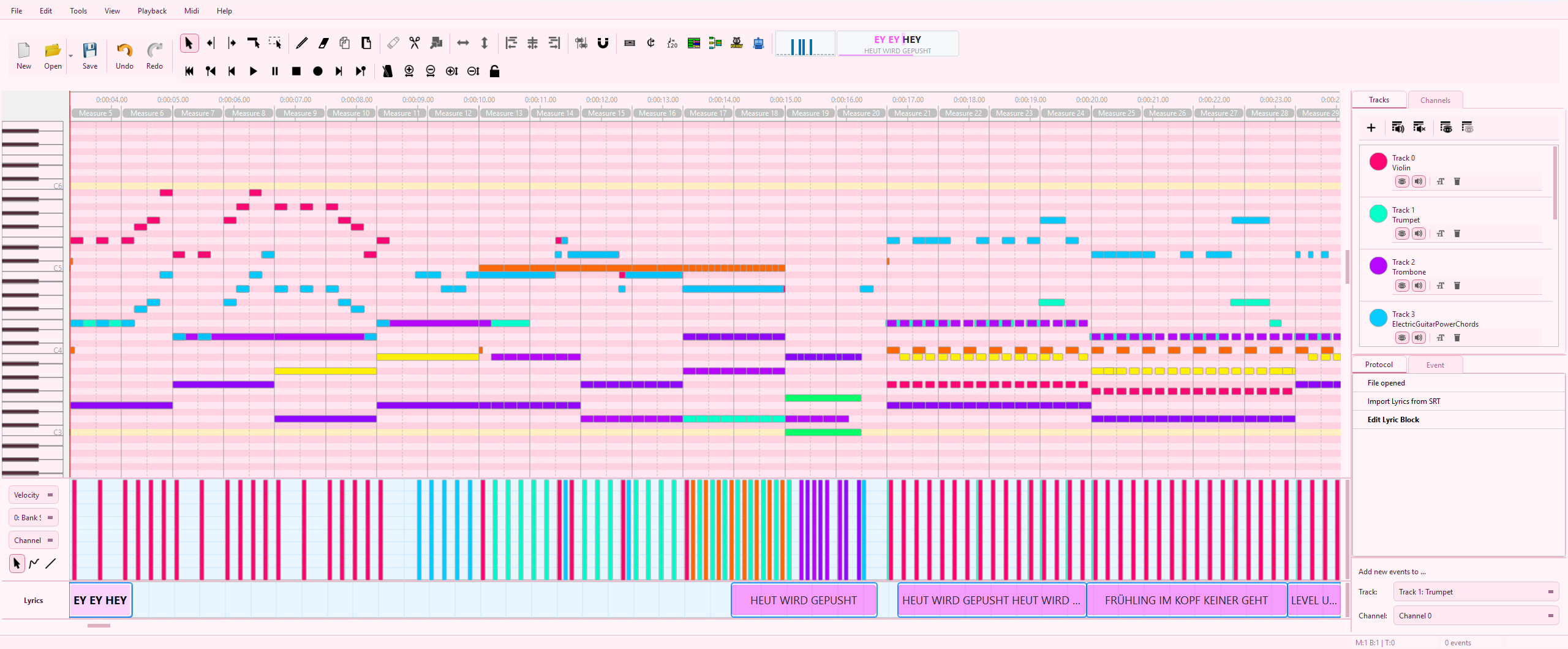
Lyric Timeline
The Lyric Timeline is a visual lane that sits below the piano roll and above the velocity area. It displays lyric phrases as colored blocks aligned to the MIDI timeline, synchronized with the piano roll’s scroll position and zoom level.

Key Features
- Colored blocks - Each lyric phrase is rendered as a rounded rectangle with text. Color follows your chosen Lyric Color Mode (Fixed Color or Track Color).
- Playback highlighting - The currently playing block is expanded vertically with a glow effect, lighter color, drop shadow, and bold text.
- Scroll & zoom sync - The timeline stays in sync with the piano roll via the shared horizontal scrollbar.
- Resizable - Drag the splitter handle to resize between ~60px and ~200px height.
Editing Lyric Blocks
| Action | How |
|---|---|
| Move | Drag a block to reposition it along the timeline |
| Resize | Drag the left or right edge to adjust start/end times |
| Edit text | Double-click a block for inline text editing |
| Delete | Select a block and press Delete or Backspace |
| Multi-select | Shift+Click to select a range of blocks |
Context Menu
Right-click a lyric block to access:
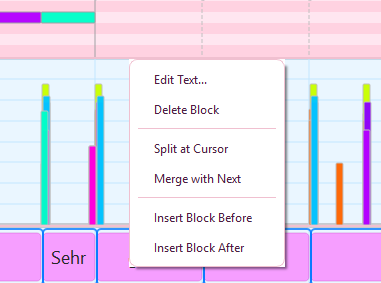
- Edit Text… - Open inline editor for the block text
- Delete Block - Remove the selected block
- Split at Cursor - Divide the block into two at the mouse position
- Merge with Next - Combine the current block with the next one
- Insert Block Before / After - Create a new empty block adjacent to the selection
Right-clicking on empty space shows:
- Insert Block Here - Create a new block at the click position
- Lyric Settings… - Open appearance settings for lyric blocks
Tap-to-Sync Dialog
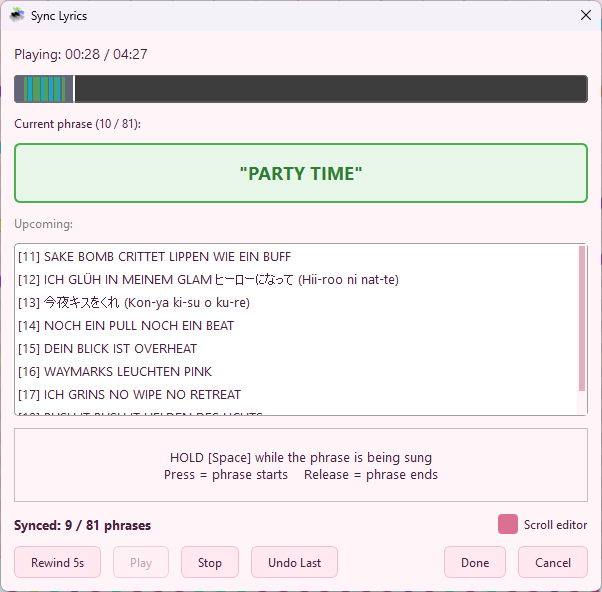
The Sync Lyrics dialog lets you time lyric phrases to the music in real time. Play the song and hold the Space bar while each phrase is being sung - press for the start, release for the end.
Open via Tools → Lyrics → Sync Lyrics (Tap-to-Sync)…
How It Works
- Import or create your lyric phrases first (via text import or manual entry).
- Open the Sync dialog - your phrases appear in a teleprompter view (next 8 upcoming).
- Press Play to start playback.
- Hold Space while each phrase is being sung:
- Press → captures the phrase start time
- Release → captures the phrase end time
- Colored markers appear on the timeline as you sync each phrase.
- Click Done when finished.
Controls
| Control | Action |
|---|---|
| Space (hold) | Mark current phrase timing (press = start, release = end) |
| Play / Stop | Start or stop playback |
| Rewind 5s | Jump back 5 seconds |
| Undo Last | Remove the most recent sync marker |
| Scroll Editor | Auto-scroll the background editor during playback |
Import & Export
MidiEditor AI supports multiple lyric formats for both import and export. All options are under Tools → Lyrics.
| Format | Import | Export | Notes |
|---|---|---|---|
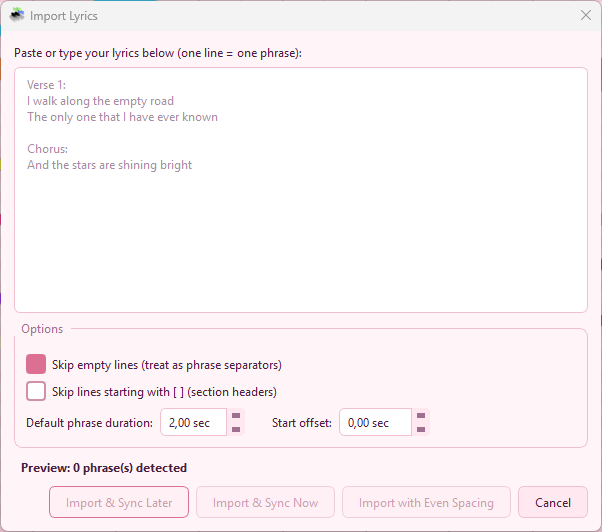
| Plain Text | ✔ | ✖ | One phrase per line. Options to skip empty lines and section headers [...]. Configurable default duration and start offset. |
| SRT Subtitles | ✔ | ✔ | Standard SRT format with HH:MM:SS,mmm timestamps. Auto-converted to MIDI ticks using the file’s tempo. |
| LRC Karaoke | ✔ | ✔ | [MM:SS.cc] format with metadata header (artist, title, album). Supports MidiBard2 extension: [MM:SS.cc]BardName:Text. |
| MIDI Text Events | ✔ | ✔ | Type 0x05 (Lyric) and Type 0x01 (Text) meta events. Automatically imported on file load. |
Importing Plain Text
Open Tools → Lyrics → Import Lyrics (Text)… to paste or type lyrics line by line. The dialog offers a live preview and three import modes. Configure the default phrase duration and start tick, and choose whether to skip empty lines or section headers.
Importing SRT
Open Tools → Lyrics → Import Lyrics (SRT)… and select an SRT file. Timestamps are automatically converted to MIDI ticks using the file’s tempo and tick resolution.
Importing LRC
Open Tools → Lyrics → Import Lyrics (LRC)… and select an LRC file.
Metadata tags ([ar:], [ti:], [al:], [by:],
[offset:]) are imported and stored as lyric metadata.
Exporting
Export via Tools → Lyrics → Export Lyrics (SRT)… or Export Lyrics (LRC)…. The LRC export includes metadata headers when available. You can also write lyrics back to the MIDI file as Type 0x05 Lyric meta events (this happens automatically on save if lyrics exist).
Lyric Visualizer
The Lyric Visualizer is a karaoke-style toolbar widget that displays lyrics during playback. It appears in the toolbar and auto-hides when no lyrics are loaded.

Display
- Current phrase - Large, bold text with a left-to-right color sweep that shows progress through the phrase.
- Next phrase - Smaller, dimmed preview text below.
- Progress bar - Thin bar at the bottom showing phrase progress.
- Dynamic sizing - Width adapts (200-600px) based on phrase length.
- Idle state - Shows “♪ ♪ ♪” when no lyrics are loaded.
- Stopped state - Displays the song title from lyric metadata when playback is stopped.
Visualizer in Action
Dark theme with SRT-imported lyrics (left) and Sakura theme with built-in MIDI lyrics (right):
Appearance Settings
Lyric appearance can be configured in Settings → Appearance:
| Setting | Description |
|---|---|
| Lyric Color Mode | Choose Fixed Color (default pinkish) or Track Color to match track colors automatically. |
| Lyric Block Color | Custom color picker when using Fixed Color mode. |
| Auto-show Lyric Timeline | Automatically show the timeline when opening a file with lyrics. |
Customize Toolbar
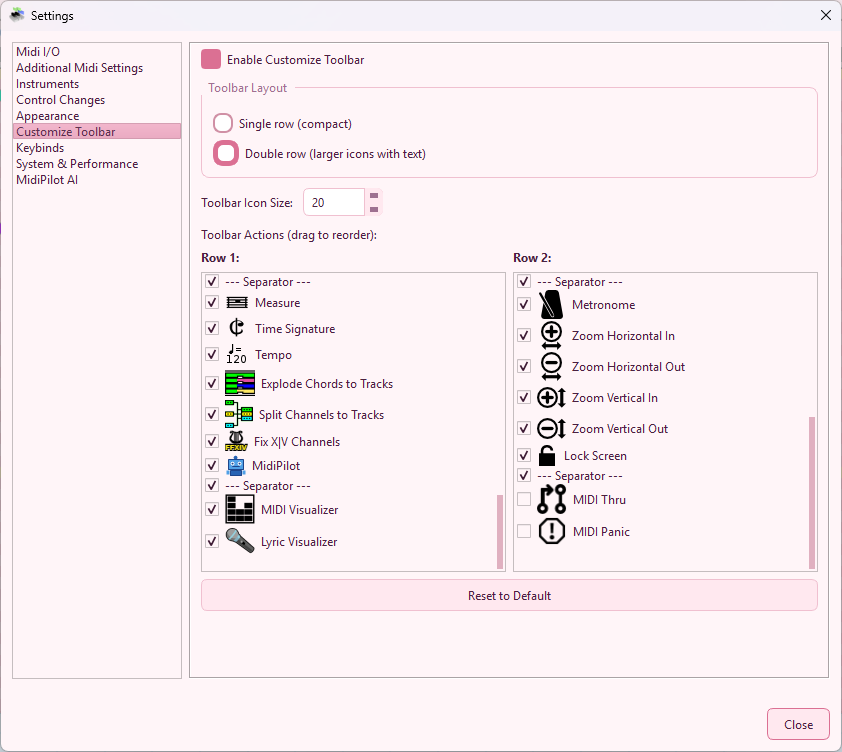
The Lyric Visualizer can be toggled on or off in Settings → Customize Toolbar:
Lyric Settings & Metadata
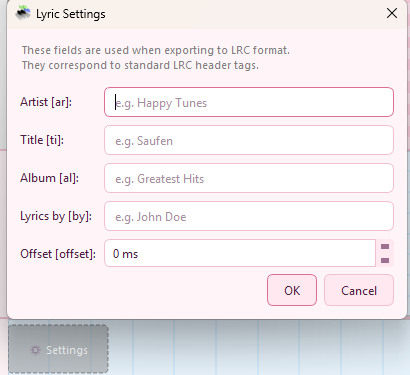
For LRC export, you can edit metadata fields: Artist, Title, Album, Lyrics By, and Offset (ms). Access via the context menu → Lyric Settings or the metadata dialog.
Keyboard Shortcuts
| Shortcut | Action |
|---|---|
| Ctrl+L | Toggle Lyric Timeline visibility |
| Ctrl+Shift+L | Import Lyrics (SRT) dialog |
| Delete / Backspace | Delete selected lyric blocks |
| Space (in Sync Dialog) | Hold to mark phrase timing |
💡 Tips
- Import plain text lyrics first, then use Tap-to-Sync to time them to the music - this is usually faster than creating blocks manually.
- Use Split at Cursor to break long phrases into syllable-level blocks for tighter karaoke timing.
- The Lyric Visualizer automatically appears in the toolbar when lyrics are loaded and hides when they’re removed.
- LRC export with the MidiBard2 extension format is useful for FFXIV bard performance scripts.
- If lyrics were embedded in the MIDI file as text events, they are automatically imported when you open the file.
- Switch between Fixed Color and Track Color modes in Appearance settings to match your preferred visual style.
Menu Reference
All lyric features are accessible from Tools → Lyrics:
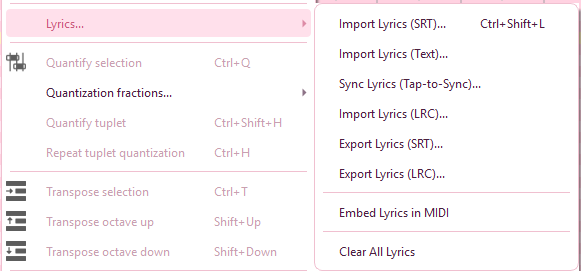
- Import Lyrics (Text)…
- Import Lyrics (SRT)…
- Import Lyrics (LRC)…
- Sync Lyrics (Tap-to-Sync)…
- Export Lyrics (SRT)…
- Export Lyrics (LRC)…
- Embed Lyrics in MIDI - writes the current lyric blocks into the MIDI file as lyric text meta events
- Clear All Lyrics - removes every lyric block from the song (undoable with Ctrl+Z)
The Lyric Timeline toggle is in View → Lyric Timeline (Ctrl+L).