SoundFonts & FluidSynth
MidiEditor AI includes a built-in FluidSynth synthesizer so you can play back MIDI files without any external software. FluidSynth renders audio from SoundFont files (.sf2/.sf3) which contain sampled instrument sounds. No drivers, no DAWs, no setup - just open a file and press play.
Note: The FluidSynth integration is based on upstream work from the Meowchestra/MidiEditor project, extended with FFXIV-specific features in MidiEditor AI.
FluidSynth Settings
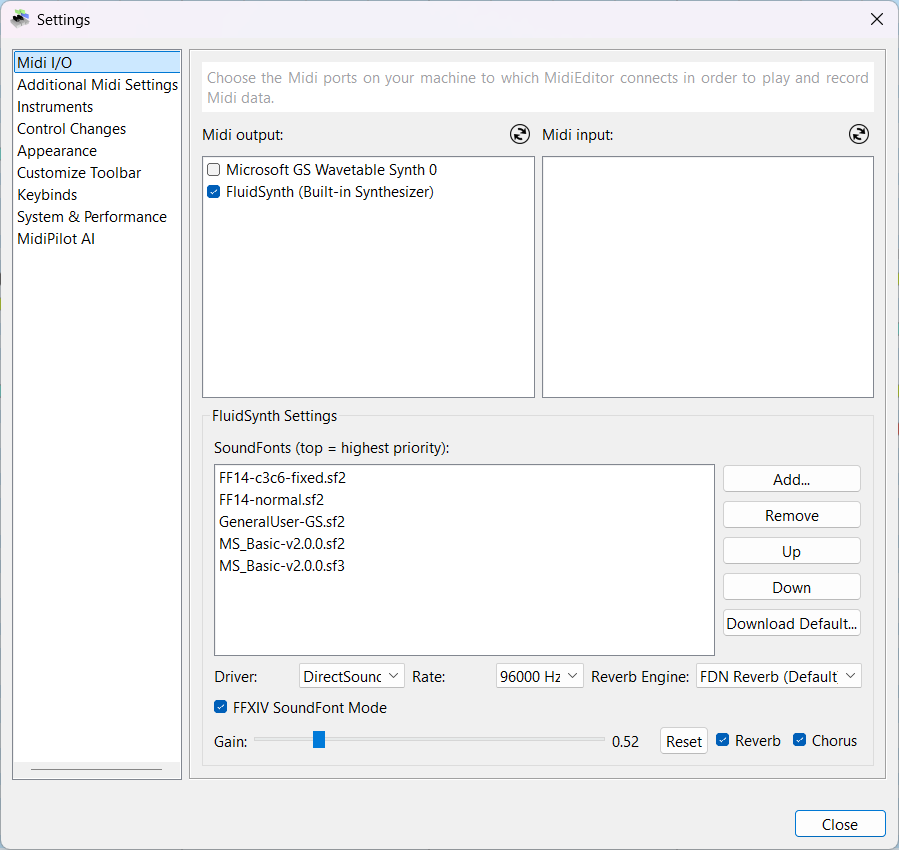
Open MIDI → Settings… and select the Midi I/O card. When FluidSynth is available you will see it listed as an output device (FluidSynth (Built-in Synthesizer)) plus a dedicated FluidSynth Settings panel below the I/O lists.
| Setting | Description |
|---|---|
| SoundFont list | Loaded SoundFonts in priority order (top = highest). Use Add…, Remove, Up, Down to manage. |
| Driver | Audio output driver (DirectSound, WASAPI, etc.). |
| Rate | Sample rate in Hz. Higher values sound better but use more CPU. |
| Reverb Engine | Choose the reverb algorithm (FDN Reverb is recommended). |
| Gain | Master volume (0.0 - 1.0). Click Reset to restore the default. |
| Reverb / Chorus | Toggle built-in reverb and chorus effects. |
| FFXIV SoundFont Mode | Special mode for FFXIV Bard SoundFonts - see below. |
Managing SoundFonts
SoundFont files are stored in the soundfonts/ folder next to the MidiEditor executable.
You can add SoundFont files in three ways:
- Add… - Browse for any
.sf2or.sf3file on your system. It will be copied into thesoundfonts/folder automatically. - Download Default… - Opens a curated download dialog with popular SoundFonts ready to install with one click.
- Manual - Drop
.sf2/.sf3files directly into thesoundfonts/folder, then restart MidiEditor or re-open settings.
Download Dialog
Click Download Default… to open the built-in SoundFont downloader. It lists curated
SoundFonts with name, size, and format. Select one or more entries and click
Download Selected. Files are saved to the soundfonts/ folder and appear in the
SoundFont list immediately.
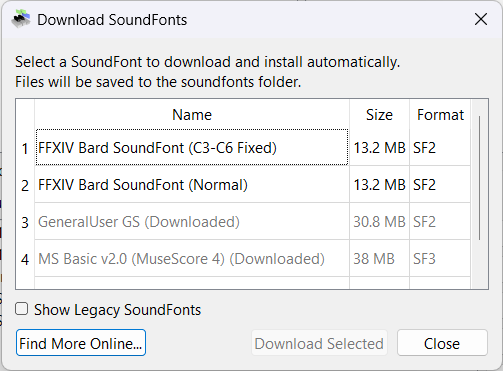
Available SoundFonts in the download dialog:
| # | Name | Size | Format | Description |
|---|---|---|---|---|
| 1 | FFXIV Bard SoundFont (C3-C6 Fixed) | 13.2 MB | SF2 | FFXIV instrument samples with corrected octave range (C3-C6). Recommended for bard performance. |
| 2 | FFXIV Bard SoundFont (Normal) | 13.2 MB | SF2 | FFXIV instrument samples with original range. |
| 3 | Commodore 64 / SID (C64 Mode) | 11.4 MB | SF2 | C64 waveform timbres used by C64 SoundFont Mode. Auto-downloaded the first time you enable that mode. |
| 4 | GeneralUser GS | 30.8 MB | SF2 | High-quality General MIDI / GS SoundFont covering all 128 GM programs. |
| 5 | MS Basic v2.0 (MuseScore 4) | 38 MB | SF3 | Large General MIDI SoundFont from MuseScore. Compressed SF3 format. |
Check Show Legacy SoundFonts to reveal older or less common options. Click Find More Online… to open a web search for additional SoundFonts.
SoundFont Priority
When multiple SoundFonts are loaded, FluidSynth resolves each program-change request top-to-bottom. The first SoundFont that contains the requested bank/program wins. Use the Up and Down buttons to reorder.
Typical stack for FFXIV playback:
FF14-c3c6-fixed.sf2- FFXIV instruments (top priority)GeneralUser-GS.sf2- fallback for any programs not in the FFXIV font
Enable & Disable SoundFonts
Each SoundFont in the list has a checkbox. Unchecking a SoundFont disables it - it stays in the list but is not loaded into FluidSynth. This is useful when you want to temporarily mute a SoundFont without removing it from the stack.
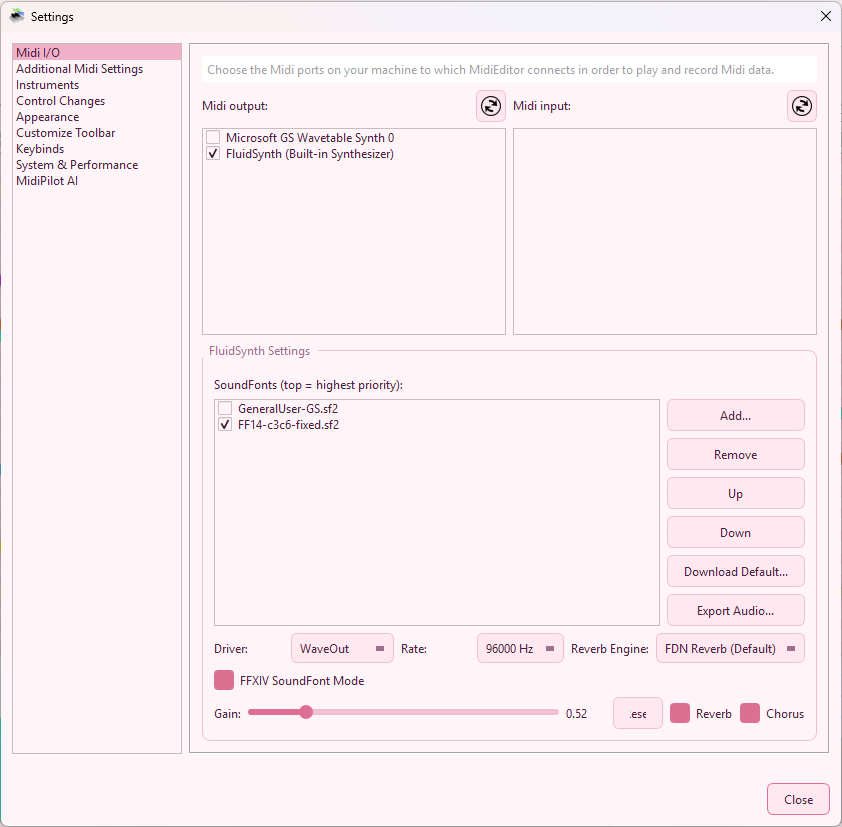
- Checked - SoundFont is active and used for playback and audio export.
- Unchecked - SoundFont stays in the list but is not loaded. It won’t contribute any sounds.
The enabled/disabled state is saved across sessions. When you restart MidiEditor AI, each SoundFont remembers whether it was checked or unchecked.
FFXIV SoundFont Mode Auto-Toggle
SoundFonts with “ff14” or “ffxiv” in the filename are recognized as FFXIV Bard SoundFonts. When you check or uncheck such a SoundFont:
- Checking an FFXIV SoundFont automatically enables FFXIV SoundFont Mode.
- Unchecking all FFXIV SoundFonts automatically disables FFXIV SoundFont Mode.
This saves you from manually toggling the mode checkbox every time you switch between FFXIV and General MIDI SoundFonts.
FFXIV SoundFont Mode - Toolbar Toggle
A dedicated XIV button sits next to the MCP button on the main toolbar
and flips FFXIV SoundFont Mode on or off without opening the
Settings dialog. The icon is highlighted
( )
when the mode is active and dimmed
(
)
when the mode is active and dimmed
( )
when it is off. The button stays in sync with the checkbox under
MIDI Settings → FluidSynth → FFXIV SoundFont Mode -
flipping one updates the other.
)
when it is off. The button stays in sync with the checkbox under
MIDI Settings → FluidSynth → FFXIV SoundFont Mode -
flipping one updates the other.
The button can be hidden, re-ordered, or restored to defaults via
View → Customize Toolbar (action id ffxiv_toggle).
Smart Enable Behaviour
Clicking the button to turn FFXIV SoundFont Mode ON performs a small setup routine so playback always sounds correct afterwards:
-
Snapshot - the currently enabled non-FFXIV SoundFonts are saved to
settings (
FFXIV/savedEnabledSoundFonts) so they can be restored later. -
Locate the FFXIV SoundFont - first check whether one is already in the
FluidSynth stack, then look in the
soundfonts/folder next toMidiEditorAI.exe. SoundFonts whose filename containsff14orffxiv(case-insensitive) are recognized as FFXIV bard SoundFonts. - Auto-download if missing - if no FFXIV SoundFont is found, you are prompted to download one. Choosing Yes opens the Download SoundFonts dialog; after the download finishes the file is automatically loaded into the engine and selected. Cancelling the download leaves the toggle in the OFF state - no half-configured mode.
- Activate - the FFXIV SoundFont is enabled, all other SoundFonts are temporarily disabled, and FFXIV SoundFont Mode is switched on.
Smart Disable / Fallback
Clicking the button to turn FFXIV SoundFont Mode OFF restores whatever was active before:
- All FFXIV SoundFonts in the stack are unchecked.
- The snapshot taken on enable is restored verbatim - SoundFonts that were unloaded in the meantime are re-loaded so the previous selection is recreated.
- If the snapshot is empty (e.g. fresh installation, FFXIV was the first SoundFont you ever activated), the first non-FFXIV SoundFont in the stack is enabled as a sane fallback so playback keeps working.
- Microsoft GS Wavetable Synth fallback - if the FluidSynth SoundFont stack is completely empty after step 3, the active MIDI output is switched to Microsoft GS Wavetable Synth (or whichever Microsoft … Synth port is available). You'll see a short info dialog noting the switch.
This means you can install MidiEditor AI on a fresh machine, click the XIV button once, accept the download prompt, and be ready to play FFXIV bard files - and clicking the button again returns you to your previous General MIDI setup, or to Microsoft GS as a guaranteed last-resort output.
FFXIV SoundFont Mode
FFXIV Bard SoundFonts store all instruments in Bank 0 with unique program numbers. Standard MIDI files, however, typically spread instruments across different MIDI banks. When FFXIV SoundFont Mode is enabled, MidiEditor AI:
- Forces Bank 0 on every channel so all program changes resolve against the FFXIV SoundFont.
- Intercepts bank-select CC messages (CC 0 and CC 32) to prevent them from overriding Bank 0.
- Maps percussion tracks (Channel 10) to their correct FFXIV program numbers based on the track name (e.g., “Snare Drum” → Program 118, “Timpani” → Program 47).
This mode only takes effect when FluidSynth is the active output device. It has no effect on external MIDI outputs or on the saved file.
Drum Mapping (Channel 10, Bank 0)
| Track Name Contains | Program |
|---|---|
| Timpani | 47 |
| Bongo | 116 |
| Bass Drum | 117 |
| Snare Drum | 118 |
| Cymbal | 119 |
Tracks whose names do not match any of the above are left unchanged on Channel 10.
FFXIV SoundFont Equalizer
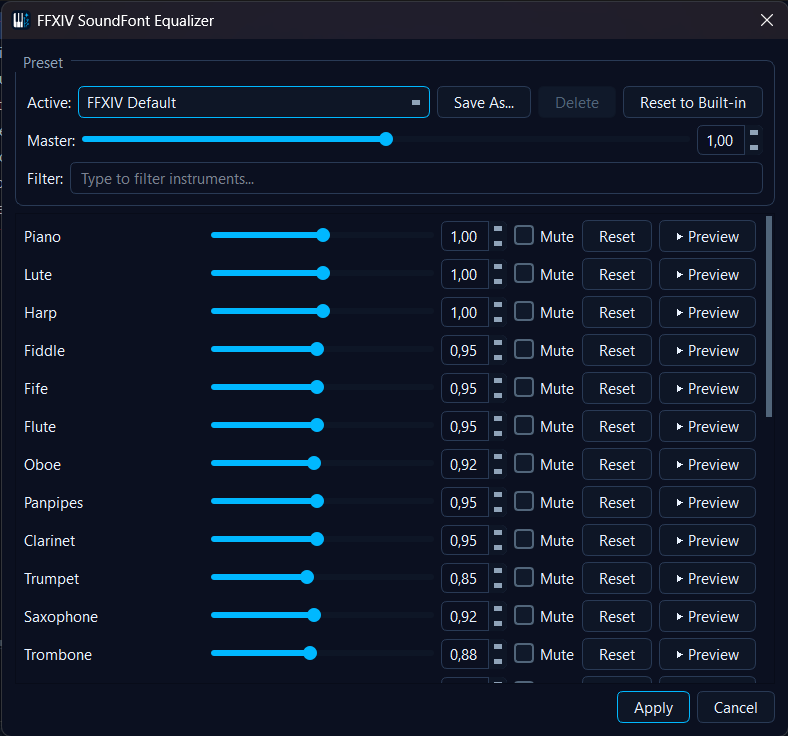
The FFXIV SoundFont Equalizer is a per-instrument volume mixer for the FFXIV bard SoundFont. It lets you trim each preset (Lute, Harp, Piano, Flute, Trumpet, GM Drum Kit, electric guitars, …) independently, save your favourite balances as named presets, and audition every change in place without ever stopping playback.
Where to find it
The dialog is reachable from two equivalent entry points (both auto-enabled when FFXIV SoundFont Mode is on, disabled otherwise):
| Entry point | Path |
|---|---|
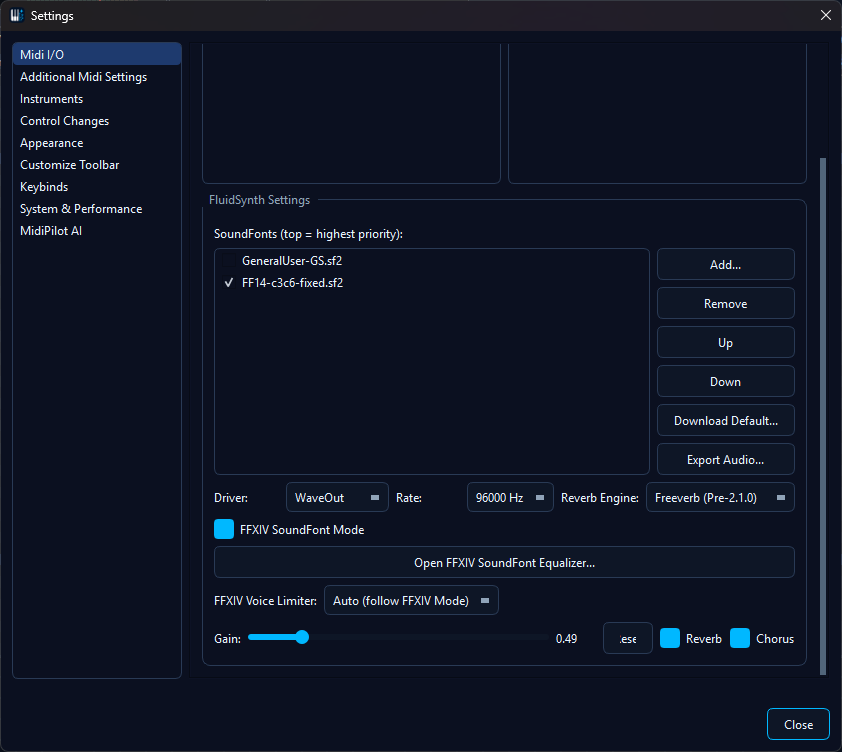 |
Settings → MIDI I/O → FluidSynth → Open FFXIV SoundFont Equalizer… Best when you are already configuring SoundFonts or audio drivers. |
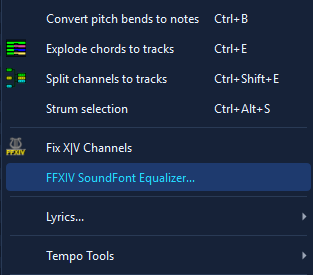 |
Tools menu → FFXIV SoundFont Equalizer… One-click access during a normal editing session. |
Per-row controls
- Gain slider (0 - 200 %) + numeric spinbox - the trim applied to every NoteOn for that program. 100 % is unity, 50 % is -6 dB, 200 % is +6 dB.
- Mute - drops every NoteOn for that program entirely (FluidSynth
receives a fully silent
GEN_ATTENUATION). - Reset - restore this row to its built-in default value.
- ▶ Preview - plays a short C-D-E-G arpeggio on a dedicated channel (or kick / snare / hat / crash for the GM Drum Kit row) so you can audition the slider position immediately. The preview always honours the equalizer, even when FFXIV SoundFont Mode is off.
Header & footer
- Preset combo with built-in FFXIV Default, plus Save As…, Delete, and Reset to Built-in.
- Master gain slider - multiplied on top of every per-instrument gain (also clamped 0 - 200 %).
- Search filter to quickly locate an instrument in long lists.
- Apply persists the current settings to the active preset. Cancel reverts to the snapshot taken when the dialog opened.
How it affects playback
The equalizer pushes additive GEN_ATTENUATION into FluidSynth on
every mixChanged event - which means moving a slider takes
effect on the very next note, both during live playback and during offline
audio export (File → Export Audio). A
muted row uses a sentinel attenuation past the audible range so silenced
presets stay silent in rendered files too.
Persistence
Presets are stored under
QSettings("MidiEditor","NONE")/FFXIV/equalizerPresets/<name>;
the active preset name is saved under
FFXIV/equalizerActivePreset. The built-in FFXIV Default
preset cannot be overwritten or deleted - Save As… always
creates a new user preset, and deleting the active user preset falls back
to FFXIV Default.
Tips
- No sound? Make sure FluidSynth (Built-in Synthesizer) is checked in Midi output and at least one SoundFont is loaded.
- Wrong instruments? Reorder SoundFonts so the desired one is on top. Check if FFXIV SoundFont Mode should be enabled or disabled.
- Crackling audio? Lower the sample rate or switch the audio driver (e.g., DirectSound → WASAPI).
- Too quiet / too loud? Adjust the Gain slider. The default is ~0.52.
- Combined with Fix X|V: Use the Fix X|V Channel Fixer to set up correct program numbers and channels, then enable FFXIV SoundFont Mode for accurate playback preview.
- Export to audio: Use File → Export Audio (Ctrl+Shift+X) to render your MIDI to WAV, FLAC, OGG, or MP3 using the current SoundFont stack.