Audio Export
MidiEditor AI can render your MIDI files to audio using the built-in FluidSynth synthesizer and loaded SoundFonts. Export to WAV, FLAC, OGG Vorbis, or MP3 - no external tools required.
The MP3 encoder (LAME 3.100) is compiled directly into MidiEditor AI as a static library. There is no need to install or configure anything.
How to Export
There are three ways to start an audio export:
- File → Export Audio… (or Ctrl+Shift+X) - exports the full MIDI file or a custom range.
- Right-click selection → Export Selection as Audio… - exports only the currently selected notes.
- Export Audio button in the FluidSynth settings panel.
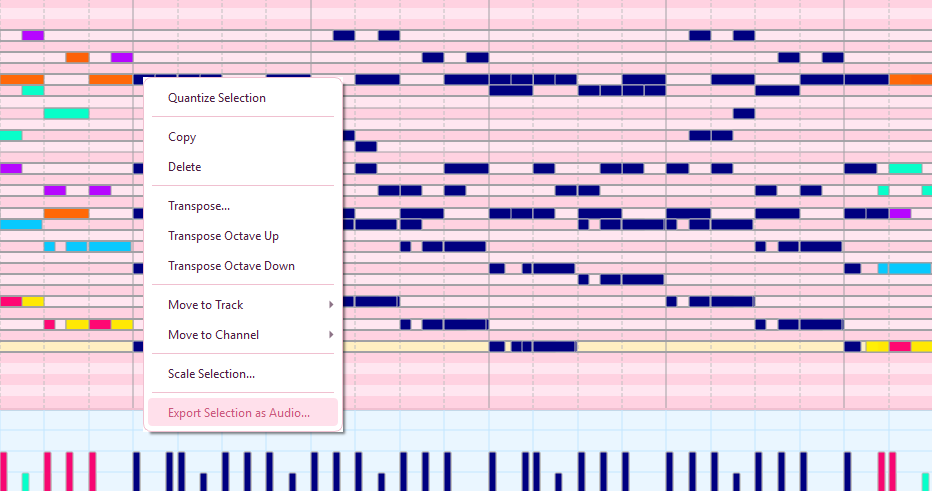
Right-click on selected notes to export just the selection.
Export Dialog
The export dialog lets you configure exactly how your audio should be rendered.
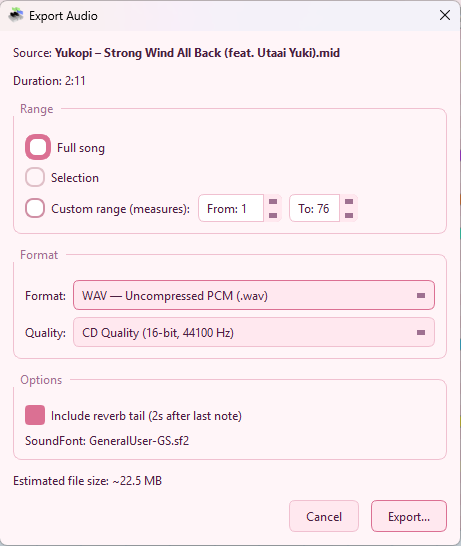
| Setting | Description |
|---|---|
| Format | Choose the output format:
|
| Quality | Preset quality tiers:
|
| Range | What part of the file to export:
|
| Reverb Tail | When enabled, adds extra time at the end so reverb and sustain can fade out naturally instead of cutting off abruptly. |
| Estimated Size | Shows the approximate output file size based on the current settings. |
Export Progress
After clicking Export and choosing a save location, MidiEditor AI renders the audio in the background. A progress dialog shows the current phase and percentage.
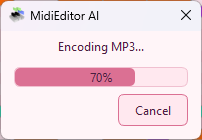
For MP3 exports, there are two phases:
- Rendering WAV - FluidSynth synthesizes the MIDI to a temporary WAV file.
- Encoding MP3 - LAME converts the WAV to MP3 at the selected quality.
You can click Cancel at any time during either phase. The temporary files are cleaned up automatically.
Export Completion
When the export finishes, a dialog appears with three options:
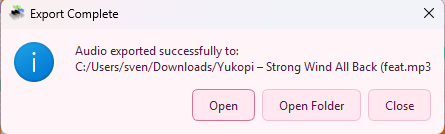
| Button | Action |
|---|---|
| Open File | Opens the exported audio file in your default media player. |
| Open Folder | Opens the containing folder in Windows Explorer. |
| Close | Dismisses the dialog. |
Exporting Guitar Pro Files
Guitar Pro files (.gp3, .gp4, .gp5, .gpx, .gp)
can be exported to audio just like regular MIDI files. MidiEditor AI automatically saves the
imported data to a temporary MIDI file for FluidSynth to render. This happens transparently -
no extra steps needed.
Exporting the Original SID (Commodore 64)
When a .sid tune is open and the Commodore 64 engine is
set to Emulation (EMU), audio export renders the original SID through the
cycle-accurate libsidplayfp
engine - the real chip sound - instead of the converted MIDI. It mirrors exactly what you hear on
playback in EMU mode.
There is nothing extra to pick: if Emulation is the active C64 engine, the export is the authentic SID, just like every other format. In SoundFont mode (or for any non-SID file) export works as usual and renders the converted MIDI through your SoundFonts.
- No SoundFont needed - the SID render is self-contained, so the Export button is available even with no SoundFont loaded.
- All formats - WAV, FLAC, OGG Vorbis and MP3 are supported (MP3 via the same LAME stage).
- Whole tune only - a SID program has no random access, so Selection and Custom range are disabled for this export; it always renders the full tune.
SoundFont Requirement
Audio export uses the currently loaded SoundFonts to determine instrument sounds. Make sure at least one SoundFont is loaded before exporting. If no SoundFonts are available, the export will fail with an error message. (The one exception is the authentic SID export above, which renders through libsidplayfp and needs no SoundFont.)
Tip: The exported audio will sound exactly like what you hear during playback with FluidSynth. If you want different instruments, reorder or swap SoundFonts before exporting. SoundFonts that are disabled (unchecked) are not used during export.
Format Details
| Format | Type | File Size | Best For |
|---|---|---|---|
| WAV | Uncompressed PCM | Large (~10 MB/min at CD) | Further editing in a DAW, maximum quality |
| FLAC | Lossless | Medium (~6 MB/min at CD) | Archival, quality-conscious distribution |
| OGG | Lossy | Small (~1.5 MB/min) | Web, games, Linux ecosystem |
| MP3 | Lossy (LAME CBR) | Small (~1.5 MB/min) | Universal sharing, broad player support |
Keyboard Shortcut
| Shortcut | Action |
|---|---|
| Ctrl+Shift+X | Open the Export Audio dialog (full file) |
Tips
- No sound in export? Make sure SoundFonts are loaded. The export uses the same SoundFont stack as playback.
- Wrong instruments? Check your SoundFont priority order. The export renders exactly what you hear during playback.
- Export is slow? Hi-Res quality (96 kHz) takes longer to render. Try CD quality (44.1 kHz) for faster exports.
- MP3 for sharing: MP3 at CD quality is the best choice for sharing online or via messaging apps.
- FLAC for archival: FLAC preserves full quality while being significantly smaller than WAV.
- FFXIV SoundFont Mode: If you have FFXIV SoundFont Mode enabled, the export respects it - your bard arrangements will sound correct.
Exporting Stems - Mute & Solo
Audio export honours the same mute and solo state as live playback, on both the channel list and the track list. This lets you bounce stems - one instrument at a time - without re-arranging the file. The behaviour is format-agnostic: it works for WAV, FLAC, OGG and MP3 alike, because the mute / solo filtering happens before FluidSynth's encoder stage.
| Goal | How |
|---|---|
| Export only one channel | In the Channels panel (right side), Solo the channel you want, then Ctrl+Shift+X. The MP3/WAV will contain only the soloed channel. |
| Export everything except a channel | Mute the channels you don’t want, then export. Muted channels are dropped from the render. |
| Export only one track | In the Tracks panel, mute every other track (or just mute the ones you want gone). Per-track mute state is now respected by the renderer, even when several tracks share a MIDI channel. |
| Export a quick drum stem | Mute everything except your drum tracks. In FFXIV SoundFont Mode each named percussion track
(Bass Drum, Snare Drum, Timpani, Bongo, Cymbal - with optional +N/-N
octave suffix) is routed to the matching FFXIV bard percussion preset automatically, so the
stem matches what you hear during playback. |
Behind the scenes the export writes a temporary MIDI file with muted tracks stripped to empty
MTrk chunks and forwards the channel mute / solo bitmask to the FluidSynth render
callback, which drops every channel-bound message for masked channels. Same behaviour applies to
Export Selection….