MCP Server - Model Context Protocol
MidiEditor AI includes a built-in MCP (Model Context Protocol) server that lets any MCP-compatible AI client - Claude Desktop, VS Code Copilot, Cursor, Windsurf, Continue, and others - directly use MidiEditor’s MIDI editing tools. Instead of copy-pasting between your AI client and the editor, the AI can read your MIDI file, create tracks, insert notes, set tempo, and more - all through a standard protocol.
What is MCP?
The Model Context Protocol is an open standard that lets AI models discover and use external tools. Think of it like a USB port for AI - any AI client that speaks MCP can plug into MidiEditor AI and control it.
MidiEditor AI’s MCP server exposes the 26 core tools that the built-in MidiPilot AI uses, plus a
switch_document tool of its own - and the five FFXIV tools whenever FFXIV mode is enabled.
The difference is that with MCP, you choose which AI client and model to use.
Demo & Examples
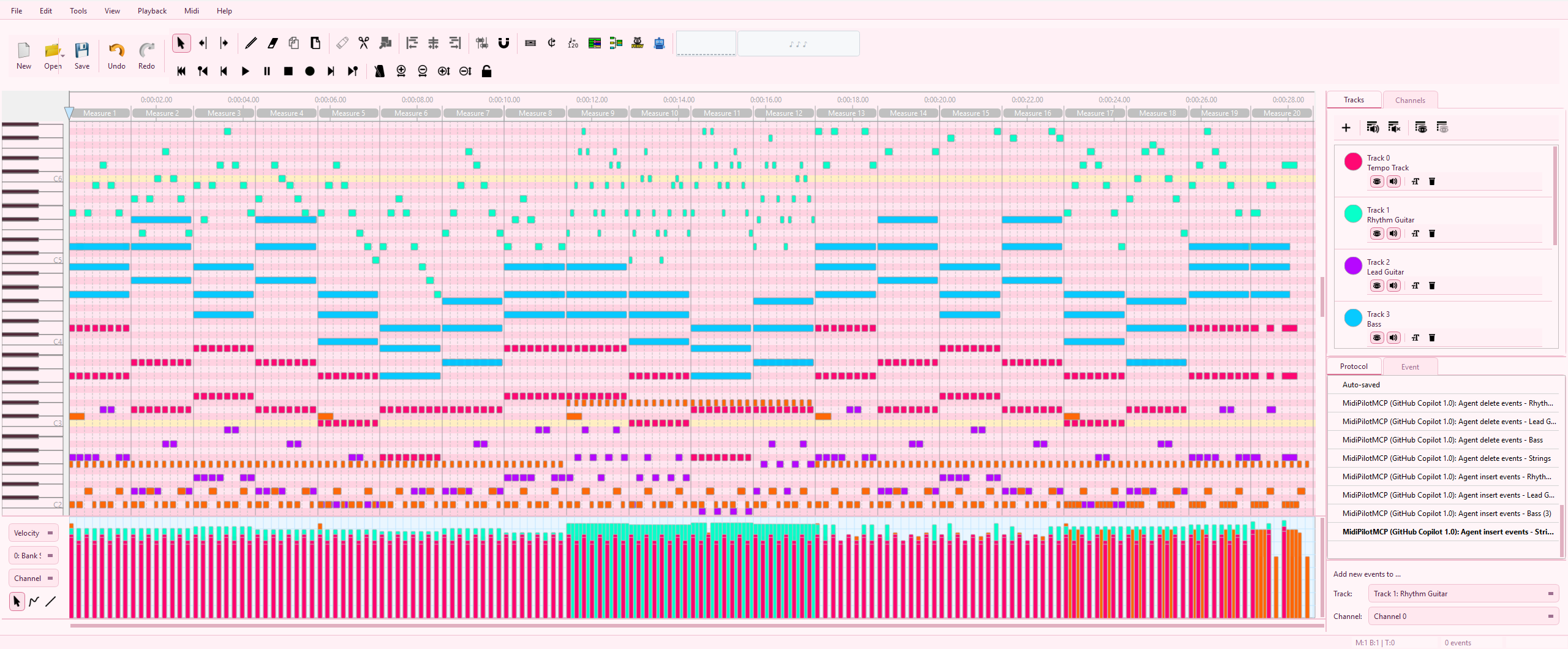

See MidiEditor AI's MCP server in action with this AI-composed metal remix of Mozart's Eine kleine Nachtmusik - created using the MCP protocol with shredding guitars, strings, and drums:
Listen & Download:
This demo shows how an external MCP client (Claude, VS Code Copilot, Cursor, etc.) can compose music by calling MidiEditor AI's tools. All 20 measures were created via the MCP protocol with a guitar solo in the middle.
Quick Start
-
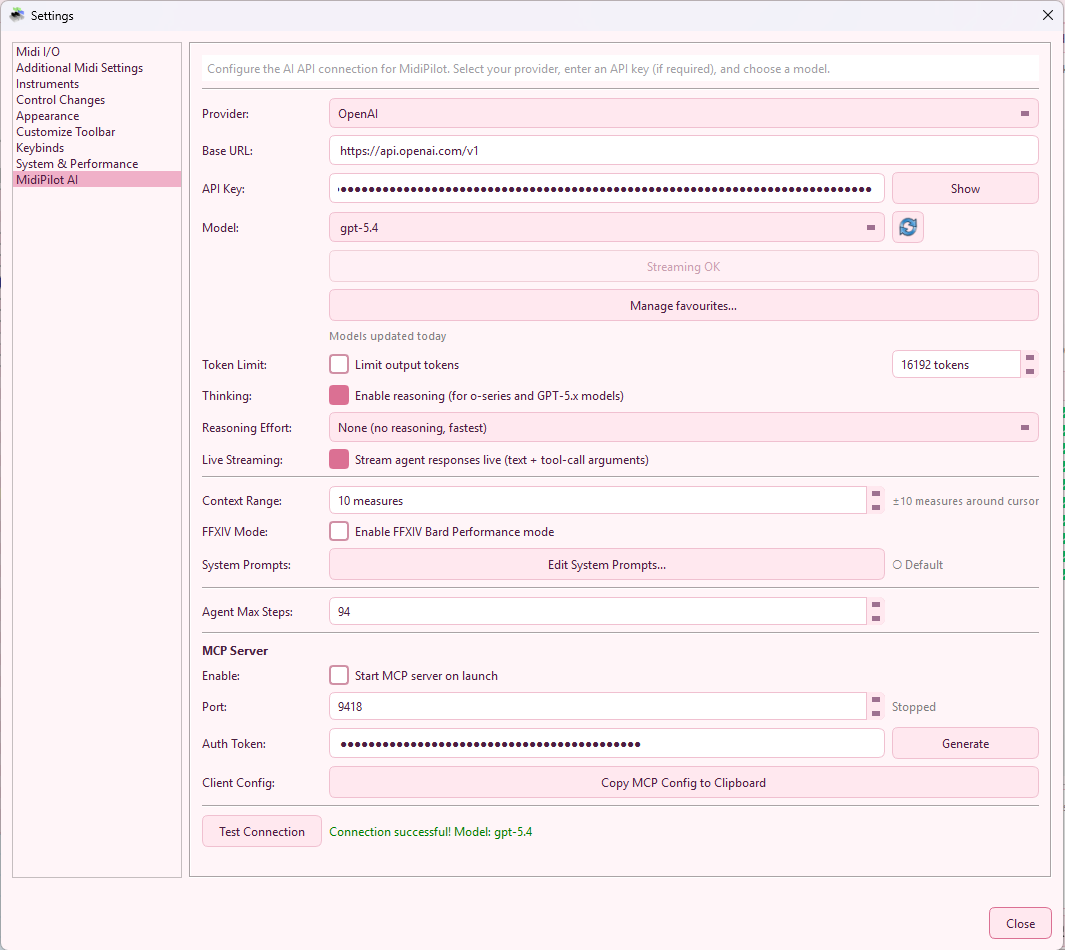
Enable the MCP Server
Go to Edit → Settings → MidiPilot AI. In the MCP Server section, check “Start MCP server on launch”. Optionally generate an auth token for security. -
Copy the Config
Click “Copy MCP Config to Clipboard”. This copies a ready-to-paste JSON snippet with the URL, port, and auth token. -
Paste into Your AI Client
Add the JSON to your client’s MCP configuration file (see Client Setup below). -
Restart Your AI Client
The MCP server starts immediately when you check the box in Settings. Just restart your AI client (Claude Desktop, VS Code, Cursor, etc.) so it connects to the running server. -
Start Editing
Open a MIDI file in MidiEditor AI, then ask your AI client to compose, edit, or analyze. All changes appear live in the editor with full undo support.
Toolbar Toggle Button
You can also start and stop the MCP server directly from the toolbar without opening Settings. The MCP Server button shows the server status at a glance:
 Green - MCP server is running and accepting connections
 Gray - MCP server is stopped
Click the button to toggle the server on or off. The toolbar button stays in sync with the checkbox in Settings. You can reposition or hide it via Edit → Settings → Layout → Customize Toolbar.
Client Setup
Click “Copy MCP Config to Clipboard” in MidiEditor AI’s settings, then paste it into the appropriate config file for your AI client.
What lands on the clipboard is a single server entry named midieditor, carrying the
url for the port you configured and - if you generated one - an
Authorization: Bearer header. Every client below wraps that entry in its own key
(mcpServers, mcp.servers, …); the entry itself is the same
everywhere. Without a token the headers block is simply absent.
Edit %APPDATA%\Claude\claude_desktop_config.json:
{
  "mcpServers": {
    "midieditor": {
      "url": "http://localhost:9420/mcp",
      "headers": {
        "Authorization": "Bearer YOUR_TOKEN_HERE"
      }
    }
  }
}
Restart Claude Desktop after saving.
Add to your VS Code settings.json or create .vscode/mcp.json in your workspace:
// settings.json
{
  "mcp": {
    "servers": {
      "midieditor": {
        "url": "http://localhost:9420/mcp",
        "headers": {
          "Authorization": "Bearer YOUR_TOKEN_HERE"
        }
      }
    }
  }
}
// .vscode/mcp.json
{
"servers": {
"midieditor": {
"url": "http://localhost:9420/mcp",
"headers": {
"Authorization": "Bearer YOUR_TOKEN_HERE"
}
}
}
}Edit ~/.cursor/mcp.json:
{
  "mcpServers": {
    "midieditor": {
      "url": "http://localhost:9420/mcp",
      "headers": {
        "Authorization": "Bearer YOUR_TOKEN_HERE"
      }
    }
  }
}
Edit ~/.windsurf/mcp_config.json:
{
  "mcpServers": {
    "midieditor": {
      "url": "http://localhost:9420/mcp",
      "headers": {
        "Authorization": "Bearer YOUR_TOKEN_HERE"
      }
    }
  }
}
The MCP server uses Streamable HTTP transport (MCP 2025-03-26) on a single endpoint:
| Endpoint | Method | Description |
|---|---|---|
/mcp | POST | JSON-RPC 2.0 messages (initialize, tools/call, etc.) |
/mcp | GET | SSE stream for server-initiated notifications |
/mcp | DELETE | End session |
Include the Mcp-Session-Id header (returned by initialize) in all subsequent requests.
Available Tools
All 26 core tools from MidiEditor AI’s built-in MidiPilot are exposed via MCP - including the
document tools list_documents, get_document_overview and
import_tracks_from_document - plus MCP’s own switch_document, and the
five FFXIV tools below when FFXIV mode is on. The AI client discovers them automatically via
tools/list.
Each MCP connection works on one document at a time. The session binds to the document that is
active when it first acts, and stays on it - so a read followed by an edit lands on the same
document even if you switch tabs in the editor meanwhile. Call get_editor_state to point the
session at whichever document is currently active, or use list_documents /
switch_document to change the editor's active tab first (followed by
get_editor_state to bind the session to it).
Read-Only Tools READ
| Tool | Description |
|---|---|
get_editor_state | Get file info, tracks, cursor position, tempo, time signature, and the selected-event count |
get_track_info | Get details about a specific track: name, assigned channel, total event count, and how many of those are notes |
query_events | Query MIDI events in a tick range on a track |
get_selection | Get the user's current selection as full events, each with a 0-based index (the index delete_events_by_index expects) |
search_help | Search the built-in manual (title/keyword/body scoring) - for questions about the editor itself |
get_help_section | Read one manual section's full plain text, found via search_help |
list_documents | List the open tabs across both editor groups: index, title, file path, group (0 = left, 1 = right), modified flag, and which one is active |
get_document_overview | Read a summary of another open tab - duration, tracks with their names, note and event counts, channels in use, and the tempo and time-signature event counts - without activating it or touching the session's bound document |
Document Tools WRITE
| Tool | Parameters | Description |
|---|---|---|
switch_document | index | Make another open tab the active document (the index from list_documents). Call get_editor_state afterwards to bind the session to it - stateful tools keep acting on the previously bound document until then |
The built-in MidiPilot agent has its own variant of switch_document that re-binds its run
without changing the visible tab; the MCP tool described here always brings the chosen tab to the front
in the editor window.
Write Tools WRITE
| Tool | Parameters | Description |
|---|---|---|
create_track | trackName, channel | Create a new MIDI track |
rename_track | trackIndex, newName | Rename an existing track |
set_channel | trackIndex, channel | Set the MIDI channel for a track |
remove_track | trackIndex | Delete a track and all its events (cannot remove the file's last track) |
insert_events | trackIndex, events | Insert MIDI events (notes, program changes, CCs) |
replace_events | trackIndex, startTick, endTick, events | Replace events in a tick range |
delete_events | trackIndex, startTick, endTick | Delete events in a tick range |
delete_events_by_index | indices | Delete specific events from the current selection by 0-based index (e.g. every second selected note) |
set_tempo | bpm, tick | Set tempo at a tick position |
set_time_signature | numerator, denominator, tick | Set time signature at a tick position |
move_events_to_track | sourceTrackIndex, targetTrackIndex, startTick, endTick | Move events between tracks |
convert_tempo_preserve_duration | targetBpm, scope, dryRun, opt. sourceBpm, trackIds, channelIds, tempoMode | Re-tempo material while keeping its real-time duration: scales event ticks and updates the tempo map so e.g. a 90 BPM vocal fits a 180 BPM project. Defaults to a dry run; the live pass converts as one undo step |
thin_tempo_map | opt. toleranceMs (default 2), opt. dryRun | Thins a dense tempo ramp down to the events that carry the timing; dry run by default, one undo step. The tolerance is a budget per open document measured against the tempo map the file was opened with, so maxDriftMs and endDriftMs are the total distance from that map and alreadyDriftedMs reports what an earlier run already spent |
set_ffxiv_mode | enabled | Turn FFXIV Bard Performance mode on or off. The FFXIV tools below appear/disappear with it and the server sends notifications/tools/list_changed; get_editor_state reports the current state as ffxivMode |
transpose_events | semitones, opt. trackIndex, startTick, endTick, foldToRange | Transpose notes by semitones as one undo step; foldToRange folds the result octave-wise into the bard range C3-C6 |
split_chords_to_tracks | trackIndex, opt. minNotes, keepOriginal | Split a track's chords voice-wise onto new tracks (voice 1 = highest note) - chords become monophonic performers |
copy_events_to_track | sourceTrackIndex, targetTrackIndex, opt. startTick, endTick | Copy notes to another track, keeping channels and timing |
import_tracks_from_document | documentIndex, opt. trackIndexes, dryRun | Copy whole tracks from another open tab into the bound document - appended as new tracks with their names preserved, the source untouched. Ticks are rescaled when the two files' resolutions differ; channel collisions and differing tempo maps are reported. Dry run by default; the live pass imports as one undo step |
FFXIV Tools FFXIV
These tools appear automatically when FFXIV mode is enabled in MidiEditor AI - either via the
FFXIV checkbox in the MidiPilot panel or by the AI client itself calling set_ffxiv_mode.
The server sends a notifications/tools/list_changed notification when FFXIV mode is toggled,
so connected clients refresh their tool list automatically.
| Tool | Description |
|---|---|
validate_ffxiv | Check if the file meets FFXIV Bard Performance constraints - every same-tick note collision and stacked duplicate with its tick, range and instrument-name problems; the legal instrument spellings are returned when a name is rejected. Same engine as the editor's Check FFXIV Playability |
convert_drums_ffxiv | Convert a GM drum track into FFXIV drum instrument tracks |
setup_channel_pattern | Fix FFXIV channel assignments and program_change events |
analyze_voice_load | Analyse simultaneous-voice count against the FFXIV 16-voice ceiling |
auto_fit_voice_load | Thin overloaded moments and over-dense passages (a write tool - defaults to a dry run; the live pass removes notes as one undo step). See Auto-Fit Voice Load |
MCP Resources
MCP resources provide read-only context. AI clients can read these to understand the current editor state without making tool calls. A resource read follows the same document the session’s tool calls act on, so state and edits stay in step even if you switch tabs in the editor meanwhile.
| URI | Description |
|---|---|
midi://state | Full editor state - file info, all tracks, cursor, tempo, time signature |
midi://tracks | Track list with names, channels, and event counts |
midi://config | FFXIV mode status, file path, ticks per beat, current tempo |
midi://ffxiv-guide | The FFXIV arrangement guide: hard constraints (8 tracks, monophonic, C3-C6, exact instrument names), drums, guitar variant switches, register and density guidance, and the order of work - the same knowledge the built-in MidiPilot agent gets. AI clients should read this before arranging for FFXIV |
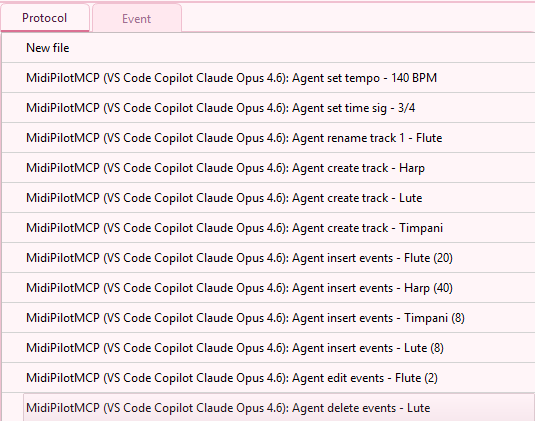
Protocol Panel & Client Identification
Tool calls that change the file are recorded in the Protocol panel, and the entry starts with a
prefix that identifies the source client. During the MCP initialize handshake, the client
sends its name and version in the clientInfo field. MidiEditor AI displays this in the
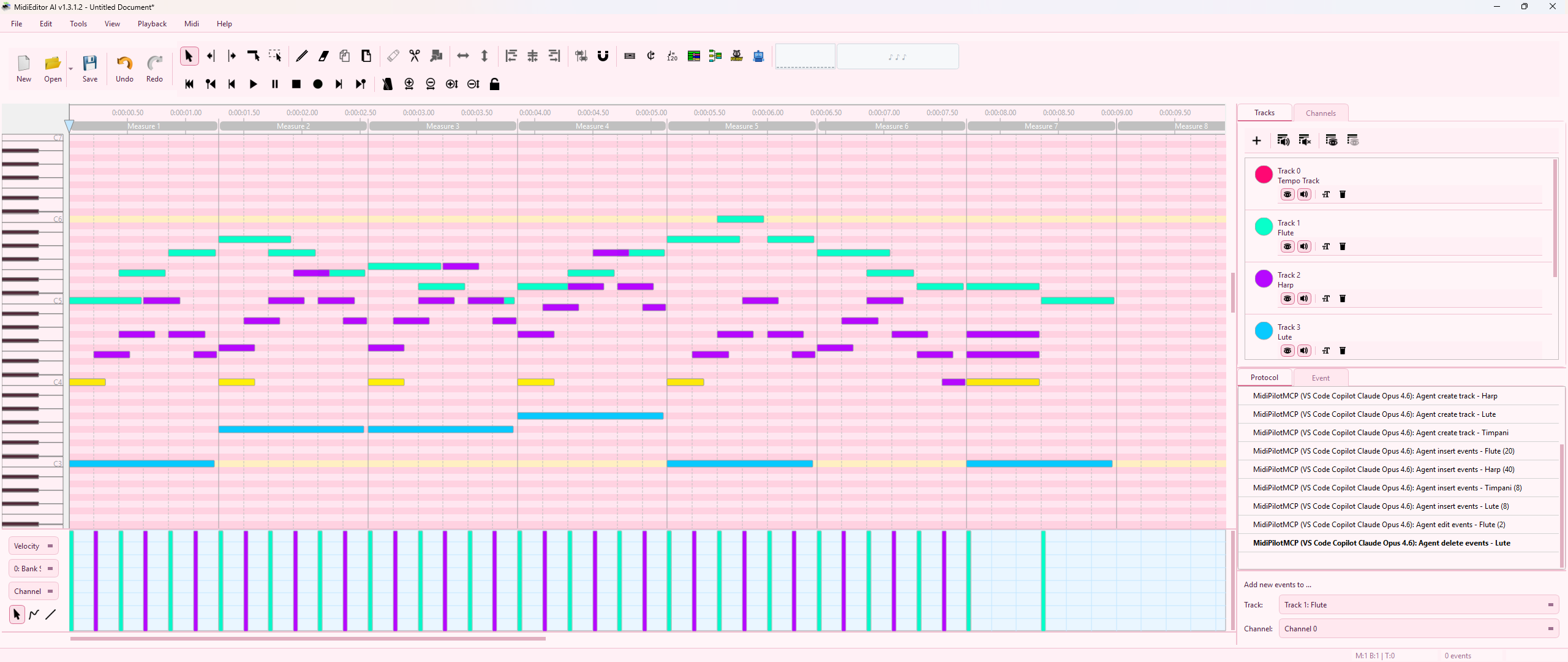
Protocol panel:
- Built-in MidiPilot:
MidiPilot: Agent insert events - Flute (20) - MCP (with client info):
MidiPilotMCP (VS Code Copilot Claude Opus 4.6): Agent insert events - Flute (20) - MCP (without client info):
MidiPilotMCP: Agent insert events - Flute (20)
This makes it easy to see which actions came from where - especially useful when both the built-in MidiPilot and an external MCP client are used on the same file. Every MCP action supports Ctrl+Z undo, just like built-in actions.
Security
The MCP server is designed for local use only:
| Feature | Description |
|---|---|
| Localhost binding | Listens on 127.0.0.1 only - not accessible from the network |
| Origin validation | Rejects requests with non-local Origin headers (DNS rebinding protection) |
| Auth token | Optional Bearer token authentication - generate one in Settings |
| Rate limiting | 100 tool calls per minute per session |
| Session management | Sessions expire after 1 hour of inactivity |
For personal use on your own machine, the server is safe without an auth token since it only accepts local connections. If you share your machine or want defense in depth, generate a token in Settings.
Limits & Performance
The MCP server enforces rate limits and has practical performance boundaries. AI clients should be aware of these when composing or editing large MIDI files.
| Limit | Value | Notes |
|---|---|---|
| Rate limit | 100 tool calls / minute | Per session. Resets every 60 seconds. Applies to all tools combined. |
| Max request body | 1 MB | Requests exceeding 1 MB are rejected with HTTP 413. |
| Events per call (fast) | ~2,000 | Recommended maximum for sub-500ms response time. |
| Events per call (max) | ~10,000 | Possible but may take 5-12 seconds. Body size ~660 KB. |
| Maximum tracks | 100+ | No hard limit. 100 tracks tested successfully. |
| Session expiry | 1 hour | Sessions expire after 1 hour of inactivity. |
Best Practices for Large Compositions
- Split
insert_eventscalls into chunks of 4-8 measures per call for fast, reliable inserts - For a full song, insert one track at a time rather than all tracks in one call
- Always include a
program_changeevent at tick 0 when inserting into a new track - Use
query_eventsto verify inserts rather than re-reading the entire file state - If you hit the rate limit, wait a moment and retry - the limit resets every 60 seconds
Troubleshooting
Server won’t start
- Check that port 9420 (or your configured port) is not already in use
- Try a different port in Settings (any value from 1024 to 65535)
- Make sure “Start MCP server on launch” is checked and you’ve restarted the app
Client can’t connect
- Verify MidiEditor AI is running and the MCP server is enabled
- Check that the port matches between MidiEditor settings and your client config
- If using an auth token, verify the token matches exactly (use “Copy MCP Config”)
- Some clients need a restart after config changes
Tools not showing up
- Make sure a MIDI file is loaded in MidiEditor AI (open or create a new file)
- For FFXIV tools, verify FFXIV mode is enabled - either via the FFXIV checkbox in the
MidiPilot panel, or by calling
set_ffxiv_modefrom the client itself - The server announces the change with
notifications/tools/list_changed, but a client only receives it while an SSE stream is open. If your client shows a stale list, ask it to refresh the tools or reconnect
“Rate limit exceeded” error
- The server allows 100 tool calls per minute per session
- Wait a moment and retry - the limit resets every 60 seconds
Technical Details
| Detail | Value |
|---|---|
| MCP version | 2025-03-26 |
| Transport | Streamable HTTP (single /mcp endpoint) |
| Encoding | JSON-RPC 2.0 over HTTP |
| Default port | 9420 |
| Session header | Mcp-Session-Id |
| Auth header | Authorization: Bearer <token> |
| Thread safety | All tool calls execute on the Qt main thread via BlockingQueuedConnection |
| Session expiry | 1 hour of inactivity |
| Rate limit | 100 tool calls per minute per session |
| Max request body | 1 MB (HTTP 413 if exceeded) |
| Max events per call | ~10,000 (recommended: ~2,000 for fast response) |
Session Lifecycle
- Client sends
POST /mcpwithinitialize - Server responds with capabilities and
Mcp-Session-Idheader - Client includes
Mcp-Session-Idin all subsequent requests - Client optionally opens SSE stream via
GET /mcp - Client sends
DELETE /mcpto end session (or it expires after 1 hour)