 Check FFXIV Playability
A file can look perfect in the editor and still lose notes in game. Check FFXIV Playability reads it by the rules of a bard performance, lists everything that would go wrong, and offers the repair that matches each kind of finding - without leaving the window.
What it is, and how to open it
It is a workbench rather than a report: every finding is clickable, the repairs that match what was found sit in the same window, and the list re-checks itself after every change you make. Like the channel fixer it is deterministic and works offline - the AI is optional.
💡 Find it in: Toolbar button or menu Tools → Check FFXIV Playability…. The button sits next to Fix X|V Channels and the drum split. The window is
modeless, so the editor stays fully usable while it is open, and it belongs to one tab - switching
documents closes it.
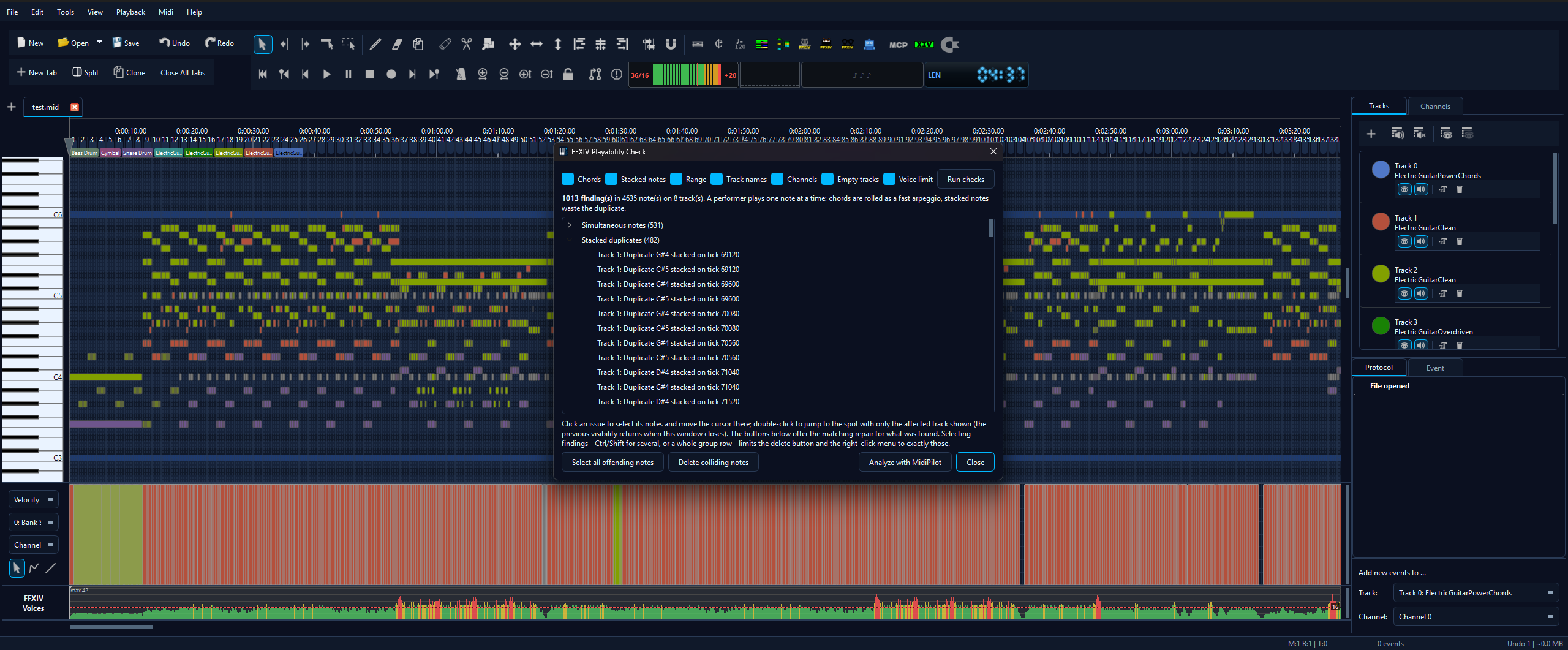
The workbench on a real arrangement - checks across the top, findings grouped below, the matching repairs offered underneath.
The in-game rules the checks encode
The checks are not generic MIDI hygiene. They follow how a bard performance actually behaves:
- A performer plays one note at a time. One track is one performer, so anything that asks a track to sound two notes at once is something the game has to resolve on its own.
- Only notes starting on the same tick collide. A held note that later notes overlap is not a clash you can hear at playing speed, so overlaps of that kind are deliberately left alone.
- Guitars work per channel. The five electric guitar variants share a track and switch by channel, so two guitar notes on different channels are a variant switch, not a chord.
- The track name selects the instrument. Program changes only make the editor's SoundFont playback faithful; in game the name decides. That is why track names are validated and program changes are not - a name/program mismatch is the channel fixer's business.
The checks
Every check is a checkbox in the row at the top of the window, and all of them start ticked. Run checks re-runs with the current selection, so a single aspect can be looked at in isolation. The headline case: untick Chords so that hundreds of deliberate chords stop burying the handful of stacked duplicates - the two are separate boxes precisely because they mean opposite things.
| Checkbox | Group in the list | What it finds, and why it matters |
|---|---|---|
| Chords | Simultaneous notes | Two or more different pitches starting on the same tick on one performer. The game rolls them as a fast arpeggio instead of a chord. Often a deliberate arranging decision, which is why it has its own switch. On guitar tracks only same-channel groups count. |
| Stacked notes | Stacked duplicates | The same pitch starting twice on the same tick - the classic hand-arranging slip. The copies sit exactly on top of each other in the editor, so they are easy to overlook; the game plays the note once and the duplicate is wasted. |
| Range | Notes outside C3-C6 | Notes below C3 or above C6 (MIDI 48-84), outside the bard's playable range. |
| Track names | Track names | Names matching no FFXIV instrument. Since the name is what selects the instrument in game,
this is the naming check that matters. Octave suffixes such as +1 are ignored,
and only tracks that actually contain notes are checked - a silent track occupies no
performer, so its name is irrelevant. |
| Channels | Channel spread - editor playback only | An instrument-named track (guitars excepted) whose notes sit on several channels. In game the track name still decides; in the editor's SoundFont preview those notes play as different instruments. The channel fixer is the repair. |
| Empty tracks | Empty instrument tracks | Tracks named like an instrument but holding no notes. Informational - usually a leftover from experimenting that still occupies one of the eight performer slots. |
| Tempo map | Tempo map | A tempo map dense enough that its size is a property of the export rather than of the music - a tempo ramp drawn in a DAW arrives as one tempo event every few ticks. The check speaks up when the file carries more than 500 tempo events whatever its length, or at least 64 of them averaging more than four per bar, so a hand-written accelerando of a handful of events stays quiet. The finding names the event count, the shape behind it - either one tempo repeated over and over, or a continuous ramp up or down or dense automation together with the number of distinct tempo values in the map - and how many events there are per bar. Both the editor and the game read every one of them, so a heavy map costs time on every playback start and every edit. It is a finding about the whole file rather than about one track, so clicking it moves the cursor and selects nothing. Thin Tempo Map is the repair. |
| Voice limit | Voice limit · Note-rate hotspots | The raw voice peak against the 16-voice ceiling together with the number of overflow ranges, plus per-channel passages above 14 notes per second. See the FFXIV Voice Limiter for what those ceilings mean and Auto-Fit Voice Load for the repair. |
Reading the list
The line above the tree counts what was found - findings, notes checked, tracks checked - or reports that the file is playable when the selected checks turn up nothing. Below it the findings are grouped by type, worst first, each group with its own count. Groups of more than twenty findings start collapsed so a broken file does not open as a wall of text; Expand all and Collapse all in the right-click menu switch that at any time.
- Click a finding to select its notes in the editor and move the cursor to its tick. Findings that have no notes of their own - a rejected track name, an empty track - only move the cursor.
- Click a group row to select the union of everything under it, so one click on Stacked duplicates shows every duplicate in the file at once.
- Double-click a finding to jump to it: the piano roll scrolls to the spot - sideways to the bar and, for a note finding, up or down to the note itself - and only the affected track stays visible, so the finding is not buried under seven other tracks' notes. The previous track visibility comes back when the window closes, and while only one track is shown the eye in the Tracks panel brings any track back with one click - Show all tracks brings back the whole set - without leaving anything in the undo history. Clicking a finding on another track moves the single-track view along with it, so the notes you just selected are always the ones you can see.
- Ctrl and Shift pick several findings at once, group rows included. That selection is what the delete button and the right-click menu act on.
- Select all offending notes hands the complete set over to the editor as a normal selection, ready for any editor operation.
A complete pass: run the checks, click a finding to select its notes and move the cursor, double-click to show only that track, then select the stacked duplicates and delete them in one step.
Repairing from the window
The buttons at the bottom offer only the repairs that match what was actually found, so the row stays a set of tools rather than a console of dead buttons:
| Button | Appears when | What it does |
|---|---|---|
| Delete colliding notes | Simultaneous notes or stacked duplicates were found | Removes the surplus notes of every collision in one undo step. A chord keeps its highest note, a duplicate keeps one copy - the louder one. |
| Channel Fixer | Channel-spread findings exist | Runs Fix X|V Channels to re-sync the channels and programs of the tracks it recognises as FFXIV instruments. A rejected track name is not repaired for you - the fixer works from the names it recognises and cannot invent one, so rename the track to an FFXIV instrument name yourself; the finding then disappears on the next check. |
| Auto-Fit… | Voice-limit or note-rate findings exist | Opens Auto-Fit Voice Load to thin the overloaded passages. |
| Thin Tempo Map… | A tempo-map finding exists | Opens Thin Tempo Map, where you pick how far the timing may move and see how many tempo events would survive before anything is changed. The button opens that dialog rather than thinning straight away, because the millisecond setting is a real decision; once you thin, the checks re-run by themselves and the finding goes. |
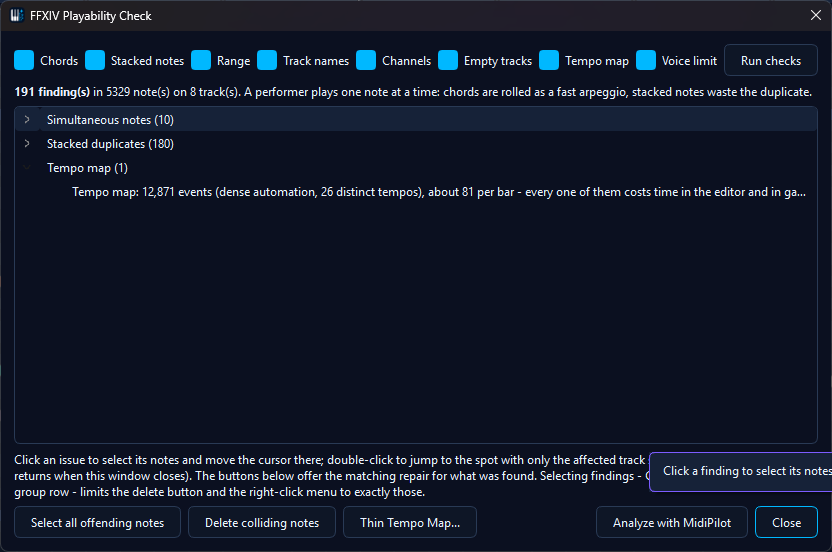
The Tempo map check names the event count, the shape and the per-bar figure - and Thin Tempo Map... waits right below as its repair.
The delete button follows your selection in the tree. With nothing selected it reads Delete colliding notes and treats every collision in the file. Select findings - individually, as a Ctrl or Shift range, or by clicking a group row - and it becomes Delete selected (N notes) and removes exactly those surplus notes. That is how the stacked duplicates get cleaned out while the chords stay untouched. A selection that contains no collisions at all, say a handful of out-of-range notes, leaves the button disabled and reading Delete selected (nothing to delete) instead of quietly doing nothing.
The same two actions - Select these notes in editor and Delete surplus notes of selected, with its own count - also sit in the tree's right-click menu, next to expand and collapse.
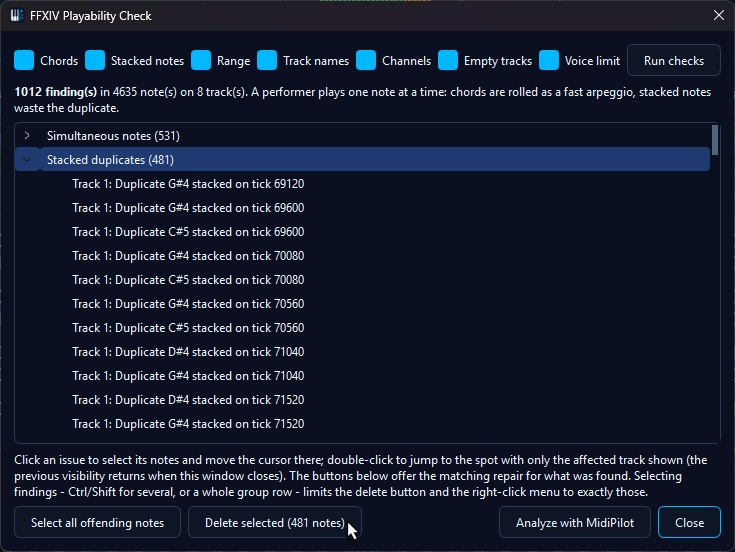
Select a whole group - here the stacked duplicates - and the delete button scopes itself to exactly those notes.
Whatever you do, the window stays open and re-checks after every change - your own edits included - so a repair's effect shows up immediately as findings disappearing from the list. Each delete is a single undo step, so Ctrl+Z brings the notes back and the list follows.
Analyze with MidiPilot
When MidiPilot has an AI provider set up, Analyze with MidiPilot sends the findings to the AI and shows its answer in a pane inside the window: a short, prioritized verdict on what must be fixed before playing in game, what is cosmetic, and in which order to work through it, with the matching tools named. The request goes through the normal chat, so the panel opens alongside and keeps the conversation. Without a configured provider the button is simply not there.
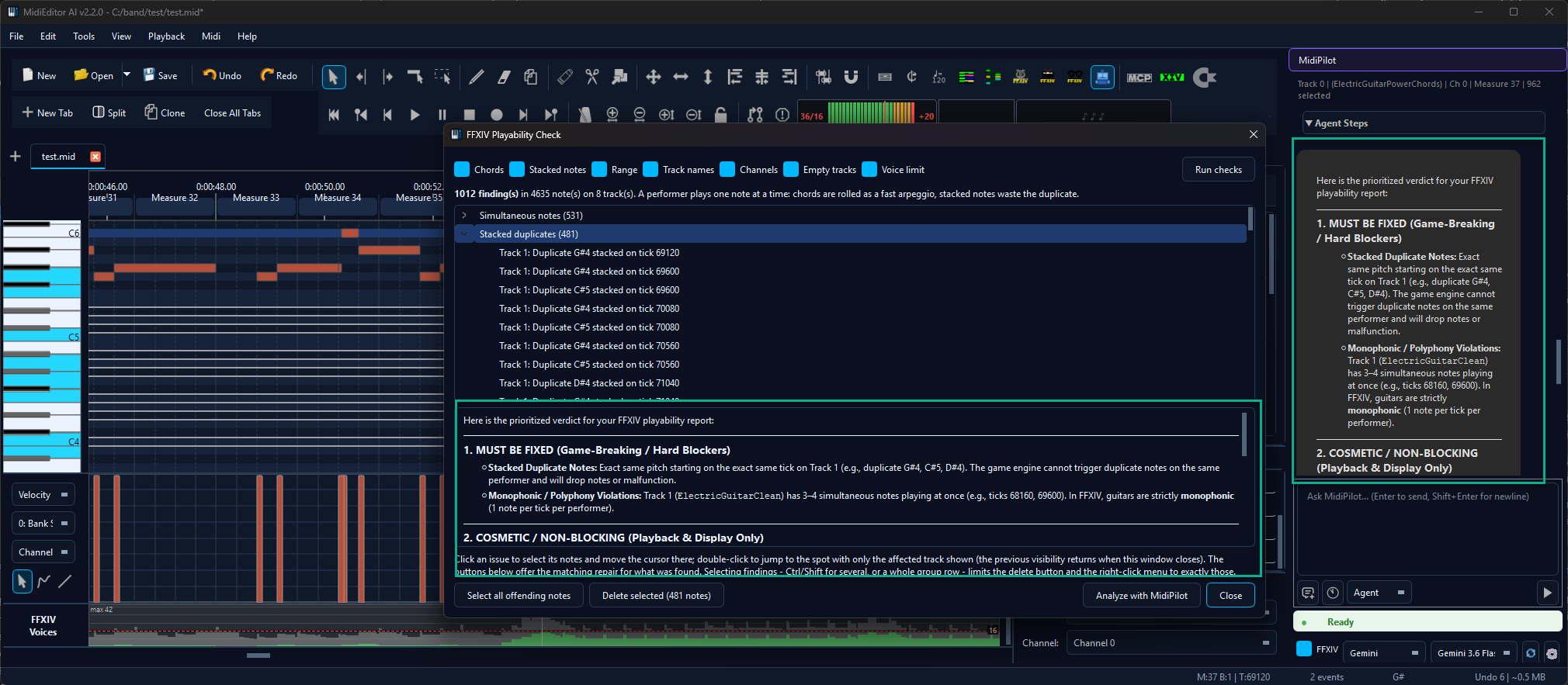
After Analyze with MidiPilot the assessment appears right in the window, prioritised and tied to the findings above it.
The same check as an AI tool
With FFXIV mode enabled, MidiPilot and any connected MCP client can run the same engine through the validate_ffxiv tool, so an arrangement built by the AI is held to the same standard as one built by hand. The tool reports the four in-game rules - notes starting on the same tick, stacked duplicates, range and track names - and it tells stacked duplicates from chords rather than lumping them together. Every finding comes with its tick, so the agent can navigate to a problem instead of describing it vaguely, and when a track name is rejected the answer quotes the legal instrument spellings, which is what turns "that name is wrong" into a fix.
The editor-only checks stay in the window: channel spread, empty tracks and the voice-limit
figures are about the editor and about arranging comfort, not about whether the game can play the
file, so they never flip the tool's verdict. The AI reaches the voice figures through
analyze_voice_load instead - see the
Voice Limiter's AI tools.
Related
- Fix X|V Channels - the channel, program and naming setup this check assumes
- Auto-Fit Voice Load - thins the passages the voice-limit findings point at
- FFXIV Voice Limiter - the live gauge and lane behind the voice ceilings
- FFXIV Drum Split - turns a GM kit into the named percussion tracks the name check expects
- MidiPilot - FFXIV mode and the
validate_ffxivtool